 Photo
PhotoEdit an existing text layer
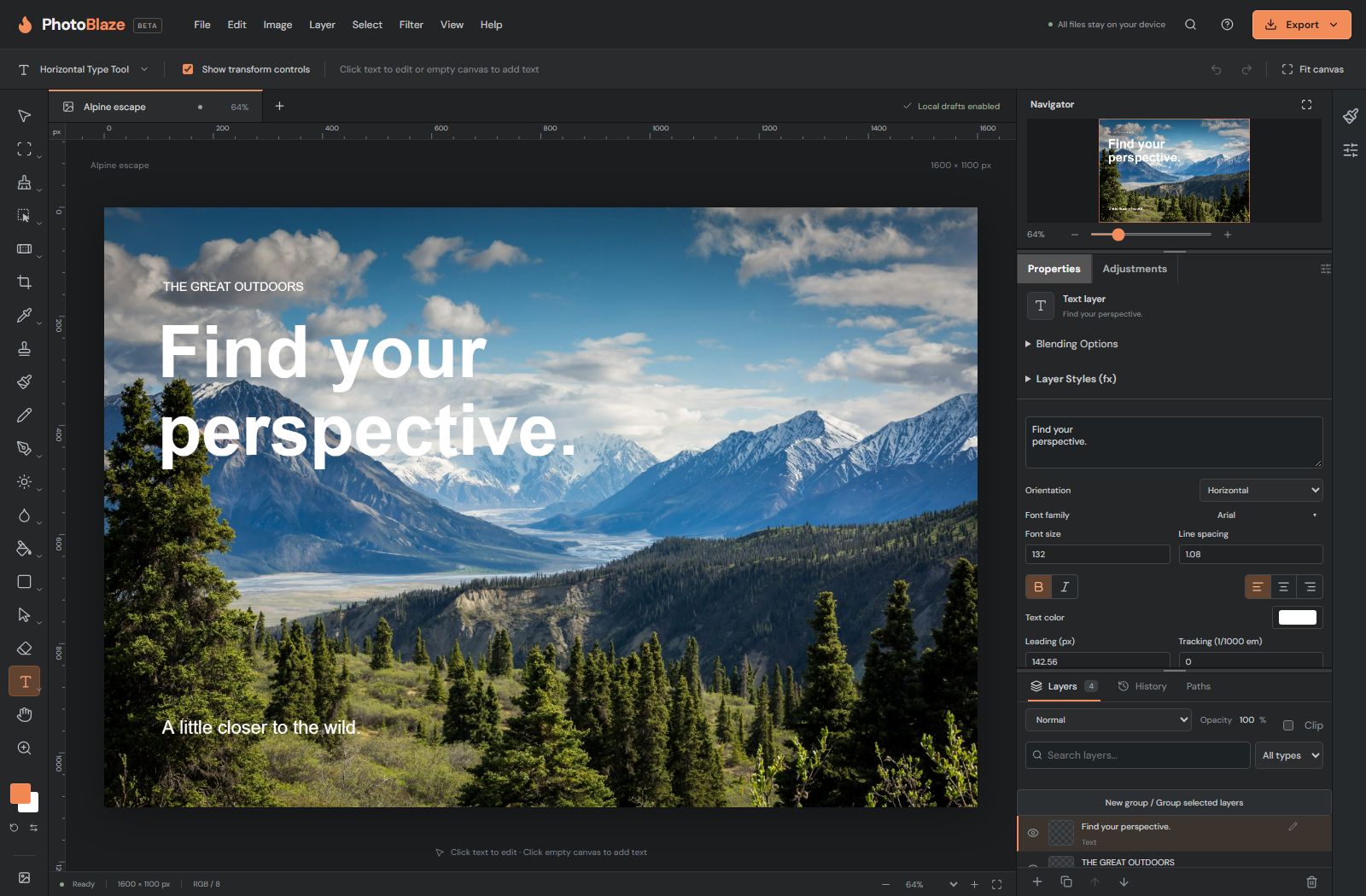
- Select the text layer in Layers.
- Choose the Horizontal Type Tool, or the Vertical Type Tool for vertical writing.
- Click the existing text on the canvas to place the caret. Select the characters you want to replace and type.
- Click away from the text to finish editing. Use Undo if you need to reverse a completed change.
Clicking an empty area creates new text. If you see a new placeholder instead of your existing words, cancel that draft with Escape and verify that the original layer is actually a text layer. An image of lettering cannot be edited as characters.
Find and preview a font
Open the font chooser and search for a family or browse the list. Each sample displays PhotoBlaze in that font. Hover over a font to preview it on the text you are changing; click to choose it. A temporary preview is not a committed font change.
Allow a font to load before judging spacing. Imported PSDs may reference fonts unavailable in this browser, which can change line breaks and appearance. Choose an available replacement and inspect the entire text block, not just the first line.
Use text Properties
Properties and Adjustments remain available while the Type tool is active. Select the type layer to see text controls. Font family and style determine the letterforms; size changes their scale; leading changes line spacing; tracking changes spacing across characters. Paragraph alignment positions lines within the text area.
Change one setting at a time when matching an imported design. Very tight tracking or leading can make letters overlap. Effects such as underline, capitals and typographic features may depend on the font’s available glyphs and shaping support.
Type masks create selections
Horizontal and Vertical Type Mask tools create a text-shaped selection rather than an ordinary editable type layer. Use them when you want to fill, mask or modify an image through letter shapes. Use the regular Type tools when you need to revise the words later.